

Creating an email template
A template is one pre-written email, such as a delivery address check or a delay notice. This article explains every part of the template editor and when a template becomes available to send.
Add a template
- Go to Order Emails → Add New.
- Type a name in the box at the top of the screen.
- Fill in the fields in the Email Content box, described below.
- Click Publish to make the template available to send, or Save Draft to keep working on it later.
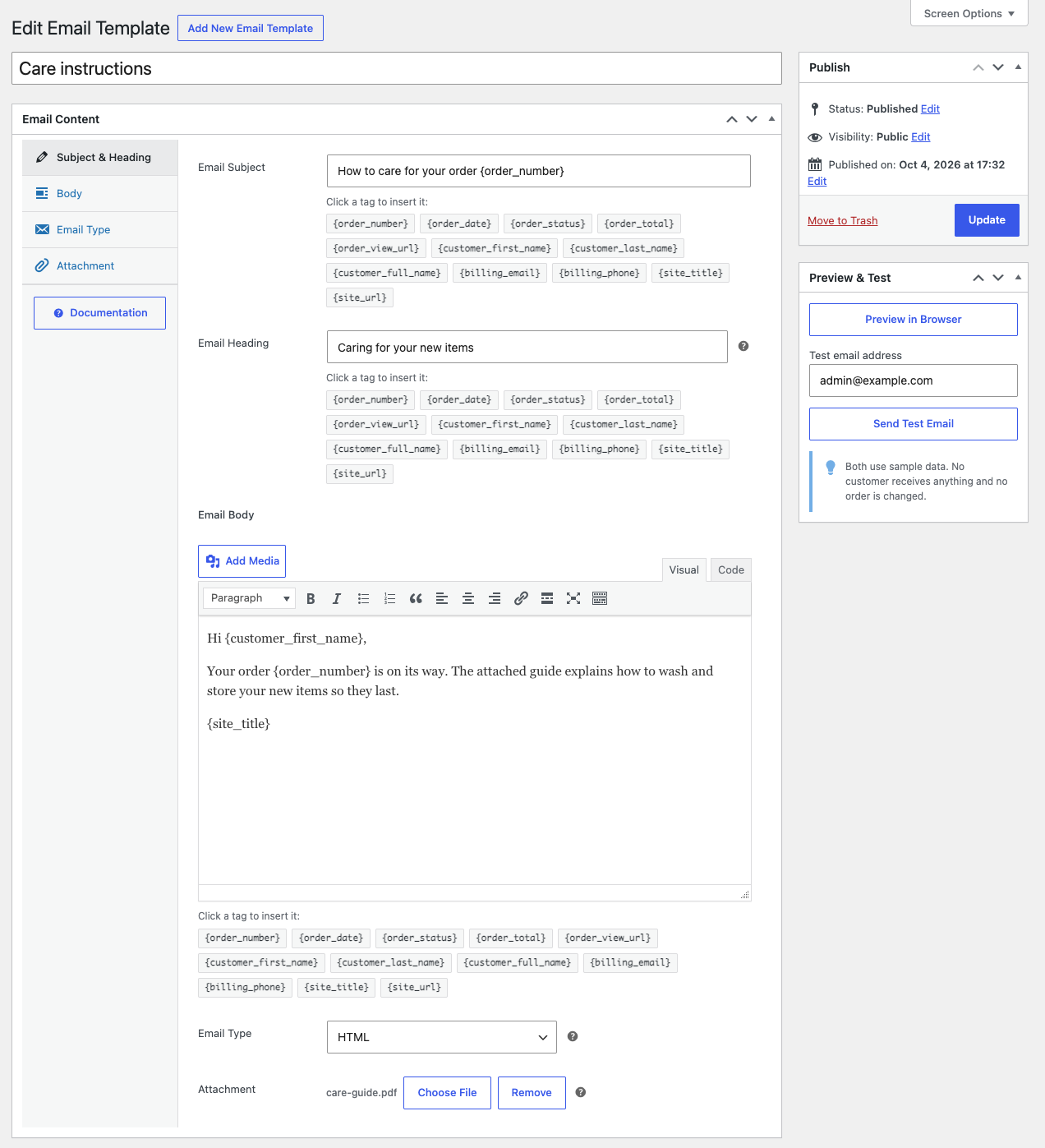
The links on the left of the Email Content box, Subject & Heading, Body, Email Type and Attachment, jump to each part of the form. The Documentation button under them opens this documentation.
The parts of a template
| Part | What it is for |
|---|---|
| Name (the box at the top) | Tells your staff which template is which. It appears in the template list, in the Send Custom Email window, in the bulk action names and the question before a bulk send, in the order history and in the order note. Customers never see it. |
| Email Subject | The subject line the customer sees in their inbox. It is required. |
| Email Heading | The large heading at the top of the email, separate from the subject line. Leave it blank to use the subject as the heading. |
| Email Body | The message itself, in the WordPress editor. You can format text, add links and insert images with Add Media. |
| Email Type | HTML, Plain text or Multipart (HTML + plain text). HTML is the default. |
| Attachment | An optional file that goes out with every email sent from the template. |
The subject, heading and body can all contain placeholder tags such as {order_number} and {customer_first_name}, which are replaced with each order’s details when the email is sent. Click a tag in the row under a field to insert it there. See Placeholder tags.
The heading only appears in HTML and Multipart emails. For the difference between the three types, see Choosing the email type. For files, see Attaching a file to a template.
Draft and published templates
Only published templates can be sent to customers. A draft never appears in the Send Custom Email window or in the bulk actions, but you can still preview it and send yourself a test copy.
Under Order Emails → Templates, a draft has Draft after its name, and the Published and Draft links above the list show each group.
To take a template out of use without losing it, change its status back to Draft in the Publish box. To remove it, move it to the Trash.
Editing a template later
Changes apply to emails you send from then on. An email that was already sent is not changed, and the order history keeps the template name that was used at the time.