

Previewing and testing a template
Check a template before a customer sees it: view it in your browser, or send a copy to your own inbox. This article explains both, and the sample data they use.
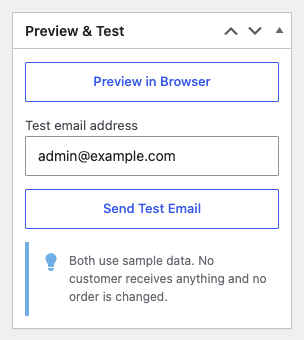
Both tools are in the Preview & Test box, in the right-hand column of the template editor. A template that has never been saved shows “Save this template first (e.g. as a Draft), then it can be previewed or test-sent.” instead. Fill in the Email Subject, which is required, click Save Draft, and the tools appear.
Preview in your browser
Click Preview in Browser. The Email preview window shows the email as a customer would receive it:
- For HTML and Multipart (HTML + plain text) templates, the designed version with your heading.
- For Plain text templates, the text version.
Close the window with the × button, the Esc key or a click outside it.
Send yourself a test email
- Check the address in Test email address. It starts out as the email address of your own wp-admin account.
- Click Send Test Email.
The box shows “Test email sent to” followed by the address. The test arrives with “[Test]” in front of the subject and includes the template’s attachment, if it has one.
If the address is not valid, the box shows “No valid email address to send the test to.” If the email could not be sent at all, see When an email is not sent or not received.
What previews and tests have in common
- They use sample data instead of a real order: an order numbered 1234, placed today, for Jane Doe, with a total of 49 in your store’s currency. The full list is in Placeholder tags.
- Order details such as the status and the date are in your site language, as in a real email. See How emails are sent.
- They use the template as it was last saved. Click Save Draft or Update after a change, then preview again.
- They work on drafts, so you can finish a template before you publish it.
- They never touch an order. No customer receives anything, and no order is marked as sent.