

Sending your first email
This article takes you from an empty template list to an email in a customer’s inbox: you write one template, publish it, and send it from the Orders screen.
Write a template
- Go to Order Emails → Add New.
- In the box at the top of the screen, type a name for the template, such as “Delivery address check”.
Only your staff see this name. Customers never do. - In Email Subject, type the subject line the customer will see, for example
Please confirm your delivery address for order {order_number}.{order_number}is a placeholder tag. When the email is sent, it is replaced with the order’s number. - In Email Body, write the message. To add a tag, click it in the row under the editor and it goes in where your cursor is.
- Click Publish. Only published templates can be sent to customers.
A short body could look like this:
Hi {customer_first_name},

Thank you for your order {order_number}. Before we ship it, could you reply to this email to confirm your delivery address?

{site_title}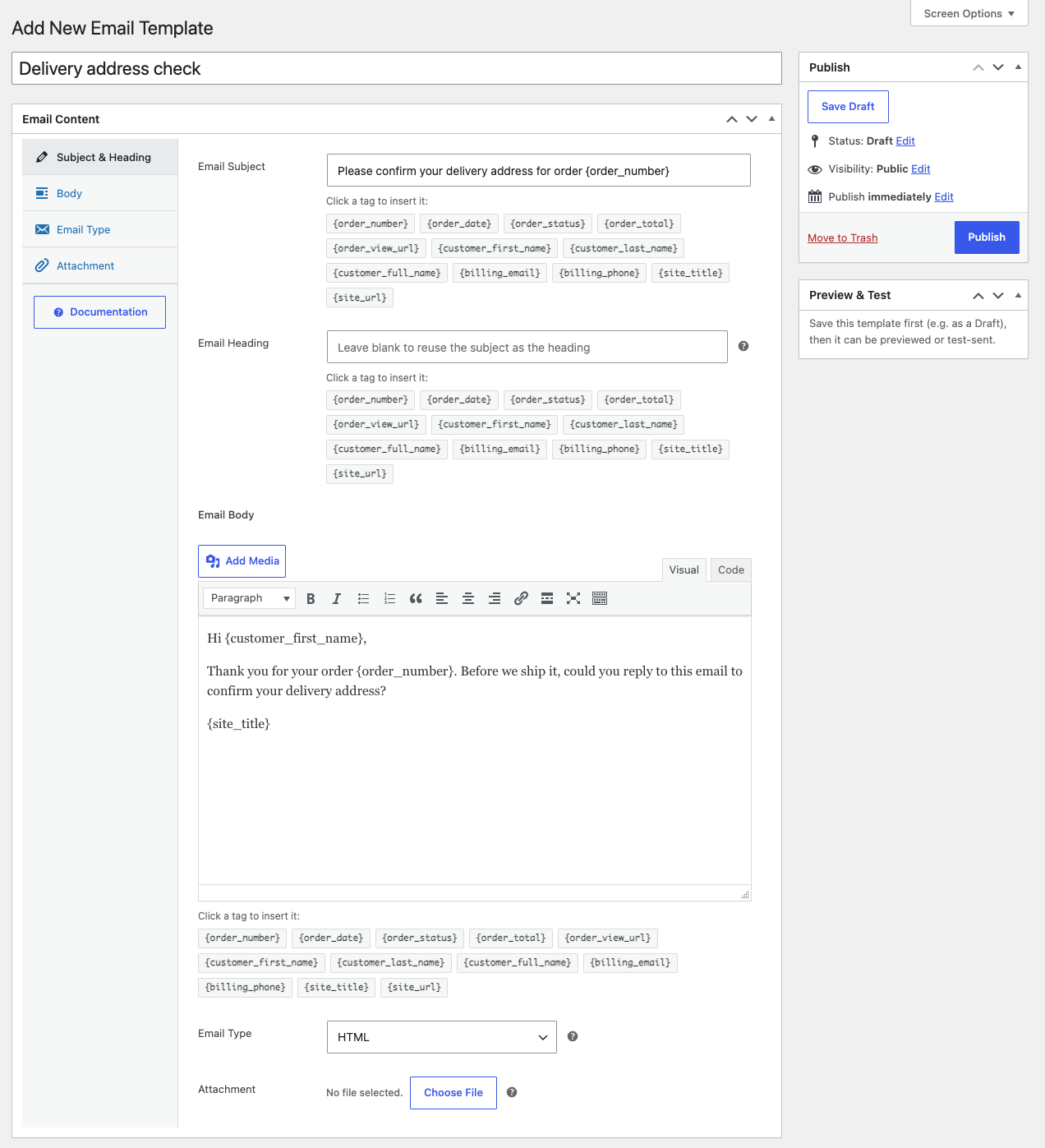
Send it to a customer
- Go to WooCommerce → Orders.
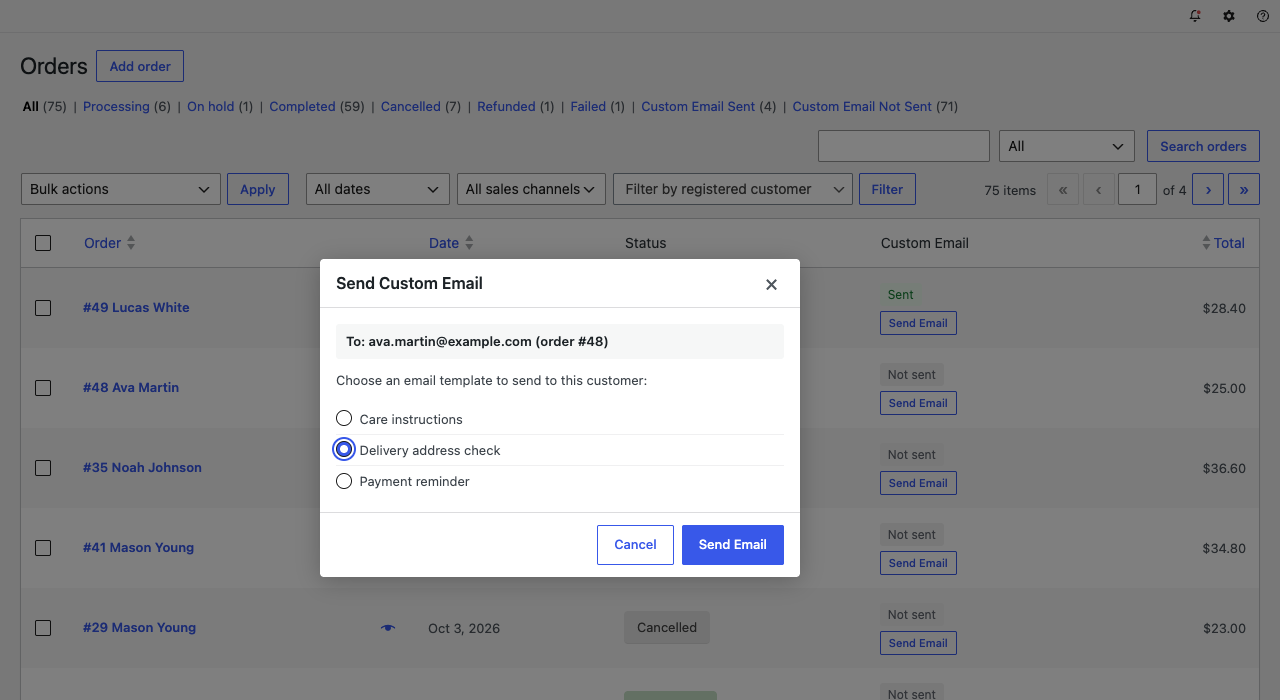
- Find the order, and in its Custom Email column click Send Email.
- In the Send Custom Email window, check the address after To:, then choose your template.
- Click Send Email.
The window shows “Email sent.” and closes, and the order’s Custom Email column changes from Not sent to Sent. The email went to the billing email address on the order. The order also gets a private note naming the template, and the send is listed under History on the order’s own screen.
Before you email real customers
Send a copy to yourself first to check the wording, the tags and the layout. See Previewing and testing a template.
To learn what else a template can do, read Creating an email template.