


The Affiliate column on the Orders and Coupons lists
The plugin adds an Affiliate column to WooCommerce’s own lists of orders and coupons, so you can see who an order or a coupon belongs to without opening the reports. This article explains both columns.
On the Orders list
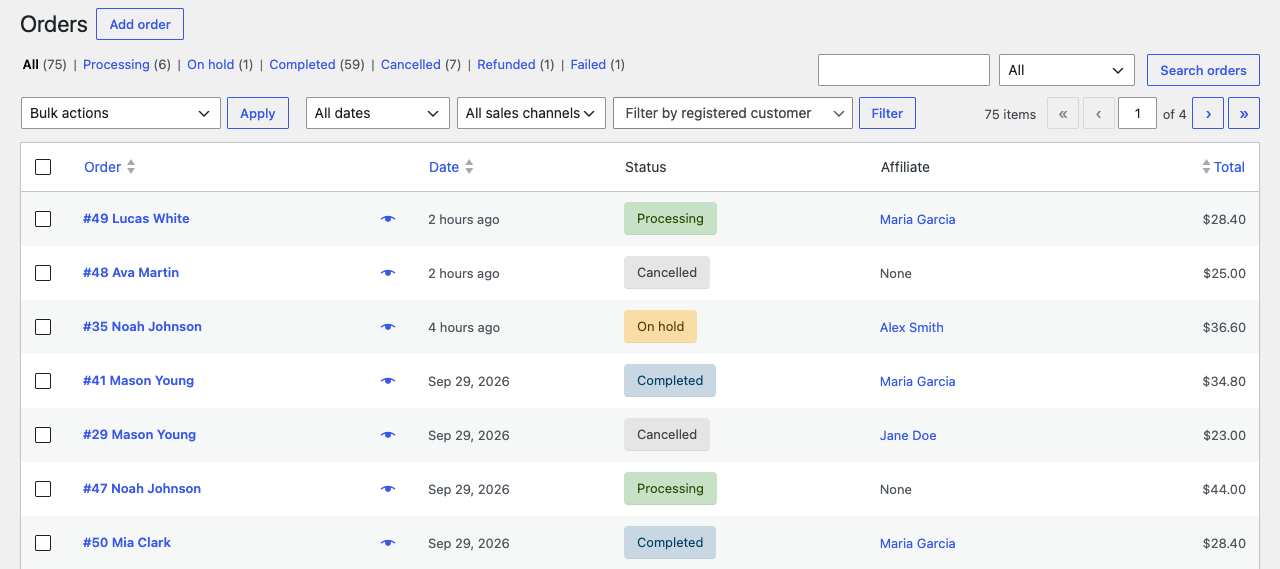
Under WooCommerce → Orders, the Affiliate column comes right after Status. It lists each affiliate whose coupon the order used, once each, sorted by name. Coupons with no affiliate are left out. Each name links to the Affiliates report for that affiliate, which opens on the default period, so an older order may not be in the figures shown.
The column says “None” when the order used no affiliate’s coupon, or when it is not in the report index yet, for example an order placed before the plugin was installed and before the index was built.
The column looks the same with both WooCommerce order storage types.
On the Coupons list
Under Marketing → Coupons, the Affiliate column comes right after the coupon code. It shows the name from the coupon’s Affiliate tab, with the email address below, or “None”.
Hiding a column
Neither column can be sorted or filtered. To hide one, open Screen Options at the top right of the list and untick Affiliate.