


Giving an affiliate their own rate
Every coupon earns the store’s default rate unless it sets its own. This article shows how to give one coupon, and so its affiliate, a different rate or no commission at all.
The fields below appear on the coupon only while commission tracking is on. See Turning on commission tracking. A rate you set stays on the coupon while tracking is off, even if you update the coupon in the meantime.
Set a rate on a coupon
- Go to Marketing → Coupons and open the coupon.
- In the Coupon data box, open the Affiliate tab.
- Under Commission, choose Percentage per order or Fixed amount per order.
- In Commission rate, enter the percentage or the amount, for example 15.
- Click Update.
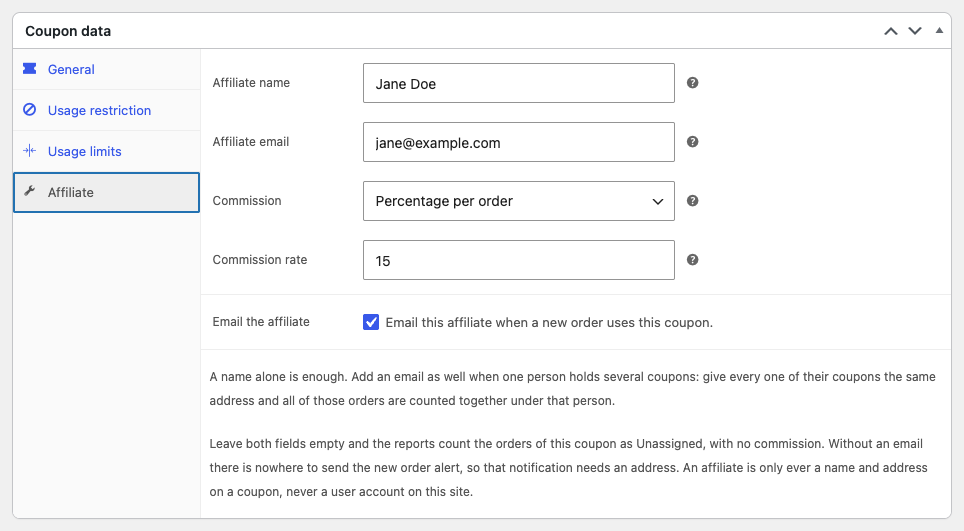
The Commission choices
| Choice | What the coupon’s affiliate earns |
|---|---|
| Use the store default | The default rate from the settings, shown in brackets, for example “Use the store default (10.00%)”, or “Use the store default (No commission)”. It follows the default when you change it later, and any number in Commission rate is ignored. |
| Percentage per order | The Commission rate as a percentage of each order. |
| Fixed amount per order | The Commission rate as an amount in your store currency, once per order. |
| No commission | Nothing, on any order that uses this coupon. |
New coupons start on Use the store default.
Warning: If you choose Percentage per order or Fixed amount per order and leave Commission rate empty, the coupon earns nothing. Enter a rate, or go back to Use the store default.
When it takes effect
Updating the coupon recalculates its orders straight away, including orders placed before you changed the rate, except orders you have already paid the affiliate for. Those keep the rate they were paid at. See Changing a commission rate.
An affiliate who holds several coupons can have a different rate on each one: every order earns the rate of the coupon it used. When one order uses two coupons of the same affiliate, see How commission is calculated.