


Turning on commission tracking
Commission is off until you switch it on. This article shows how to switch it on, set the rate every coupon uses by default, and what changes in the plugin once it is on.
Switch it on
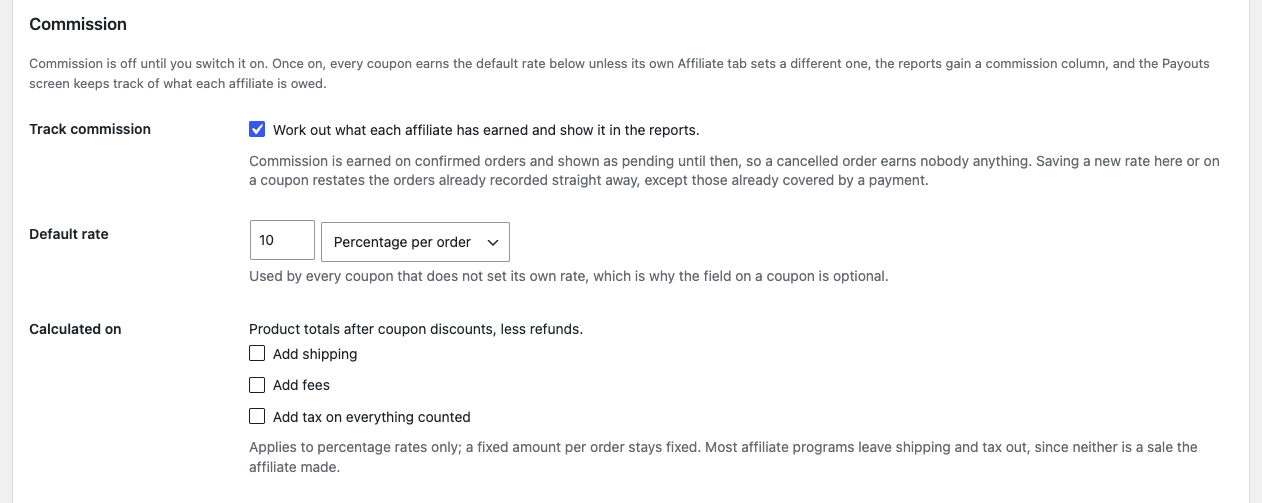
- Go to Affiliate Reports → Settings and scroll to Commission.
- Tick Track commission.
- Under Default rate, enter the rate and choose its type: Percentage per order, Fixed amount per order or No commission.
A new install starts at 10 and Percentage per order. - Under Calculated on, tick what a percentage is also worked out on: Add shipping, Add fees or Add tax on everything counted. Leave them all unticked to pay on products only.
- Save the settings.
The default rate is used by every coupon that does not set a rate of its own. To give one affiliate a different rate, see Giving an affiliate their own rate. For what a percentage is worked out on, see How commission is calculated.
What changes once it is on
- The Affiliate tab of each coupon gains a Commission choice and a Commission rate field.
- The dashboard gains Commission earned and Commission pending.
- The Affiliates, Coupons and Orders reports gain a Commission column.
- The Payouts screen shows each affiliate’s balance, and payments can be recorded. See The Payouts screen.
- The new order email can tell the affiliate what the order earned them, if you choose that in its settings. See The new order email.
History included
The plugin works out commission on every affiliate order all along, even while tracking is off. Switching it on shows the full history straight away, with no rebuild needed. Orders not yet paid for are worked out at the rates currently saved, and orders already paid for keep the rate they were paid at.
Switching it off again hides commission from the dashboard, the reports and the coupons, and stops new payments from being recorded. The Payouts screens still show balances and recorded payments, the CSV files still include commission, and coupons keep their own rates.