
The new order email
The plugin can email an affiliate each time a new order uses one of their coupons. This article explains how to switch it on, when it is sent and what it contains.
Switch it on for a coupon
The email goes out only for coupons where you ask for it:
- Open the coupon under Marketing → Coupons, and open its Affiliate tab.
- Make sure Affiliate email holds the affiliate’s address.
- Tick Email the affiliate.
- Click Update.
The email itself is on by default in WooCommerce’s email settings, where it is called “Affiliate new order”. See Changing the affiliate emails.
When it is sent
Choose the moment under Affiliate Reports → Settings, in Send the email:
| Choice | Sent |
|---|---|
| As soon as the order is placed | At checkout, before the payment is confirmed. Orders you create in wp-admin do not trigger it. |
| When the order reaches Processing | When the order’s status changes to Processing. An order that reaches Completed without passing through Processing is emailed when it reaches Completed: for example an order of downloadable virtual products only, which WooCommerce completes straight away, or an order you move from On hold to Completed. This is the default. |
| When the order reaches Completed | When the order’s status changes to Completed. |
Each affiliate is emailed once per order, so a status moving back and forth never sends a second copy. An order that used two coupons of the same affiliate sends them one email. It names the first of those coupons and shows what the affiliate is credited with for the order, the larger of the two amounts.
If the email is switched off in WooCommerce at the moment an order reaches the chosen point, that order is not emailed later when you switch it back on.
What it contains
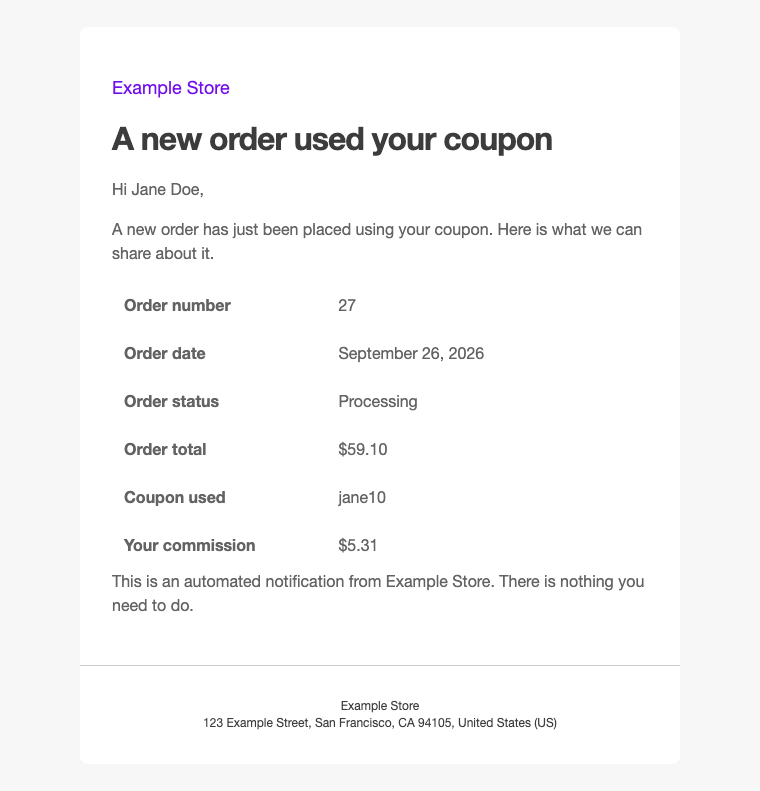
The email greets the affiliate by name, then lists:
- the order number, date, status and total;
- the coupon used;
- optionally, the commission the order earned the affiliate, with “Pending until the order is confirmed.” while it is pending. Tick Show what this order earned the affiliate in the email’s settings to include it. It appears only while commission tracking is on.
It never includes the customer’s name, address, email address or phone number, the products ordered, or links into wp-admin.