


Recording a payment
After you pay an affiliate, record the payment in the plugin so their balance goes down and the orders it covers are marked as paid. This article walks through the form and what recording does.
Record a payment
- Pay the affiliate your usual way, for example by bank transfer. Recording a payment sends no money.
- Go to Affiliate Reports → Payouts and click the affiliate’s name.
- In Orders placed up to, pick the last order date this payment covers, and click Update. Amount due shows what you are recording.
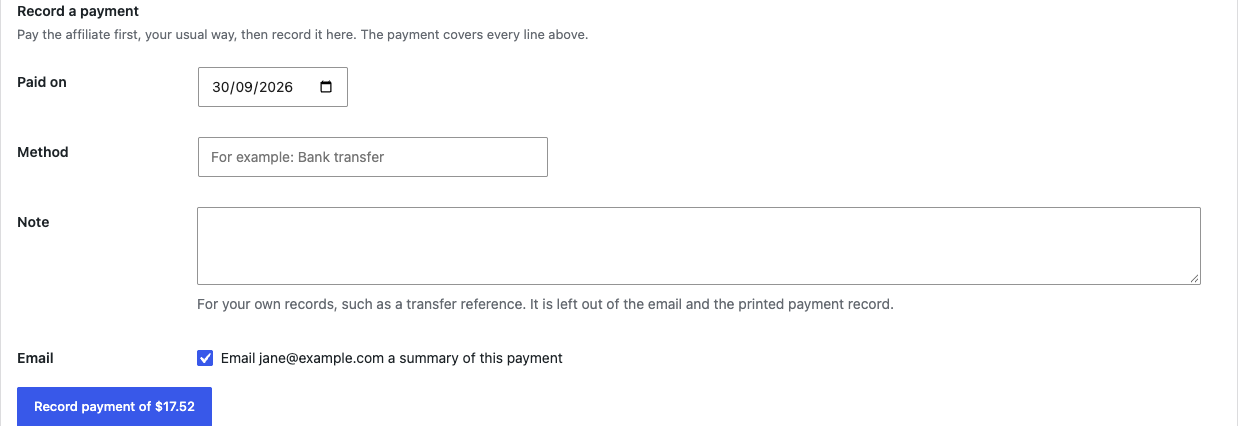
- Under Record a payment, fill in the form:
Paid on: the date you paid. It starts at today.
Method: how you paid, in your own words, such as “Bank transfer”. It is optional.
Note: anything for your own records, such as a transfer reference. It never appears in the email or the printed payment. - Leave the email box ticked to send the affiliate a summary of the payment, or untick it. The box reads “Email”, then the affiliate’s address, then “a summary of this payment”.
- Click Record payment of followed by the amount, for example Record payment of $123.45.
The payment opens on its own screen with the notice “Payment recorded.”, or “Payment recorded, and the affiliate was emailed a summary.” when the email went out. If the email could not be sent, the notice says so: “Payment recorded, but the summary email could not be sent. Check that this site can send email.” The payment is recorded either way.
What a payment covers
A payment always covers every line in the due table, and its amount is the Amount due. There is no field to type a different amount or to pick single orders. To pay for fewer orders, choose an earlier Orders placed up to date first.
Lines for paid orders that changed later, which reduce what is due, are always included, whatever their date. See When a paid order changes.
What recording does
- The orders it covers are marked as paid for this affiliate, so they drop out of Due now.
- Those orders keep the affiliate, rate and base they were paid on, even if the coupon changes later.
- Nothing is written to the WooCommerce orders themselves.
- When the email box was ticked, the affiliate gets the payment email. See The payment email.
When the email box is missing
Instead of the box, the form can say:
- “The payment email is switched off.” with a link to switch it on under WooCommerce → Settings → Emails.
- “This affiliate has no email address on their coupons, so no summary can be sent.”
When a payment is refused
The screen shows why, and nothing is recorded:
| Message | What to do |
|---|---|
| Commission tracking is switched off, so no payment was recorded. Switch it on under Affiliate Reports > Settings, then try again. | Commission tracking was switched off after the page was opened. Switch it on, then record the payment again. |
| The report index is being built or is out of date, so no payment was recorded. Rebuild it under Affiliate Reports > Settings, then try again. | Run Rebuild index to the end, then record the payment again. See The report index. |
| Nothing is due for the orders selected, so no payment was recorded. | There is nothing to pay for the chosen date, or the same form was sent twice. |
| The amount due changed after this page was opened, for example because an order was cancelled, so no payment was recorded. Check the new amount and record it again. | Check the new Amount due and record again. |
| The payment could not be saved. Nothing was recorded. | A database error. Try again, and if it repeats, ask your host. |
The form appears only when something is due. It is hidden while commission tracking is off or while the index is not fully built, and when changes after earlier payments outweigh what is due, the statement explains that instead.
If you recorded a payment by mistake, see Deleting a payment.