




Page checks
About 2 minutes after you activate it, and every hour after that, Hera Site Monitor asks your site for its own pages as a logged-out visitor, then for each page’s own stylesheets and scripts, and looks for the signs that a page is broken. This catches problems a PHP error alone does not show, such as a stylesheet that no longer loads after an update. The check reads what the server sends: it does not run the page’s scripts or load its images.
Which pages are checked
The home page is always checked, and so is the cart page of a WooCommerce store. To add more, go to Site Monitor → Settings. Under More pages to check you can:
- tick a suggestion. The suggestions are one page of each kind found on your site, such as the shop page, a product, a post or a page with a form. The checkout is not suggested: WooCommerce sends a visitor with an empty cart from the checkout to the cart, and the check never has a cart, so a checkout on the list shows Could not check. The cart page is checked already;
- search for a page, post or product by its title, and click it to add it;
- type an address under Add an address, the full address or from the slash, for example
/contact/.
Untick a page to take it off the list, then click Save Changes. Up to nine pages can be added, ten in total with the home page. The count above the list says how many are chosen, and once nine are, nothing more can be added until you untick one. The cart page is checked on top of those. A developer can change the number with a filter; see Filters.
The list is short on purpose: every check loads each page, with its stylesheets and scripts, on your own server, every hour. A site with thousands of pages does not need them all on the list. Pages built from the same template, such as two products or two posts, usually break together, so one page of each kind tells you as much as all of them.
Only pages of your own site can be added. Addresses on another site, repeated pages and the home page are left out when you save, and the screen says so.
After you save, the Site Monitor screen lists the new pages at once as Not checked yet. They are checked about a minute and a half later, without waiting for the hourly check, or at once if you click Check pages now. If you keep the screen open, it shows their results by itself once the check has run; after 10 minutes it stops waiting and says Reload this screen to see newer results. A page you take off the list is no longer checked, and its open problems are marked as fixed.
The Page checks screen
Site Monitor → Page checks shows every page on the list across the full width of the screen.
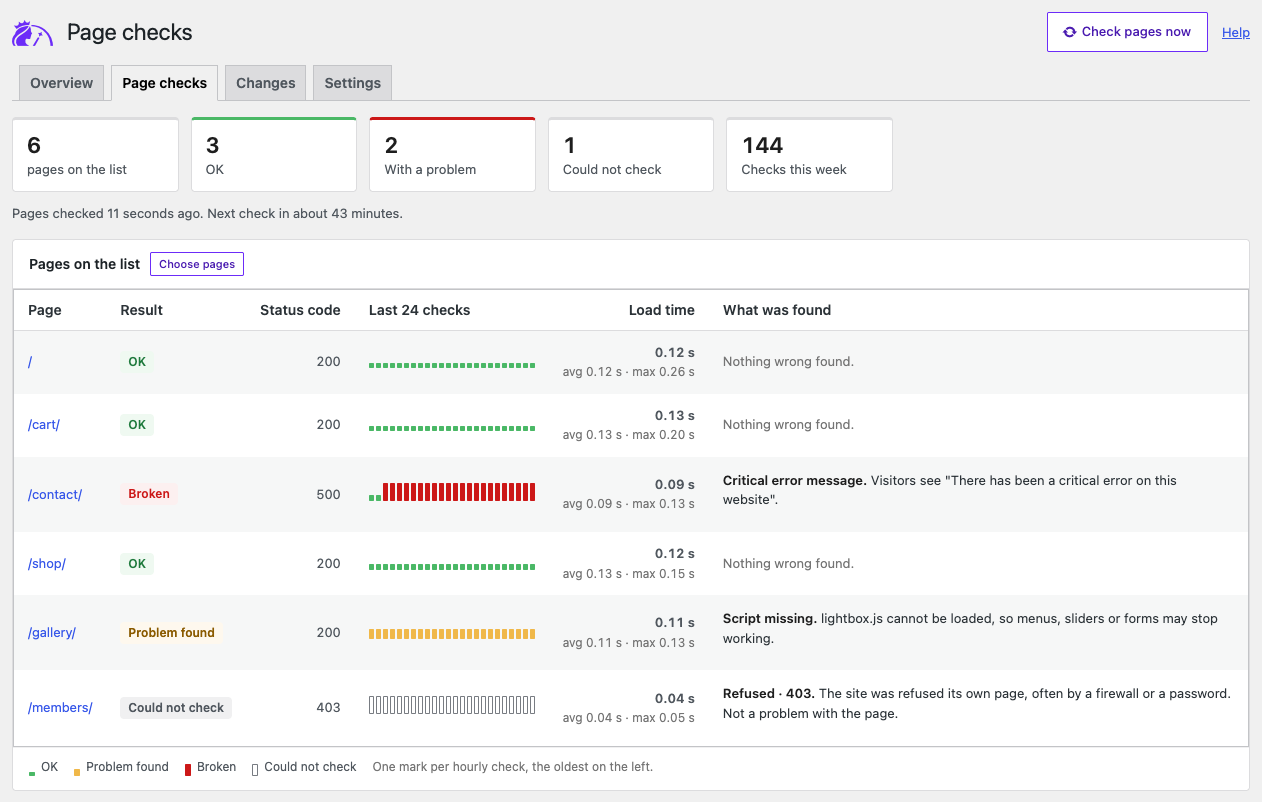
At the top, the figures say how many pages are on the list, how many are OK, how many have a problem, how many could not be checked and how many checks ran this week. The line under them says when the pages were checked and when the next check is due. Check pages now runs the checks at once and comes back to this screen. While they run, the button is turned off and a line says how many pages are being checked; it usually takes less than a minute. Choose pages opens the settings.
| Column | What it shows |
|---|---|
| Page | The page’s address. When the home page sends every visitor to another page of the site, such as /en/, a line under it says where it was checked. |
| Result | OK, Problem found, Broken (a critical problem, such as the critical error page or a missing stylesheet), Could not check or Not checked yet. |
| Status code | The HTTP status the page answered with at the last check, such as 200 or 500, or No answer. For a page that sent the check on to another address, the redirect it answered with, such as 302. |
| Last 24 checks | One mark per check, oldest on the left, told apart by shape as well as colour: a low green mark for OK, a yellow mark of half height for a problem found, a red mark of full height for broken, and a grey outline when the page could not be checked. |
| Load time | How long the page took to arrive at the last check, before its stylesheets and scripts were checked, and the average and slowest of the last 24 checks that got an answer. |
| What was found | A short name for each problem, such as Script missing or Refused · 403, and one sentence on what it means, naming the file when there is one, for example “slider.js cannot be loaded, so menus, sliders or forms may stop working.” The full message is on the problem’s row on the Site Monitor screen. |
A page you just added shows Not checked yet until its first check. While a page waits for its first check, or the next check is due within a few minutes, the screen shows the new results by itself once the check has run, without a reload.
What a check looks for
| Problem | Shown as |
|---|---|
| The page redirects in a loop and never loads | Critical |
| The page shows WordPress’s “There has been a critical error on this website” message, or “Error establishing a database connection” | Critical |
| The page answers with a server error, such as HTTP 500, or HTTP 503 while no maintenance or coming soon mode is on | Critical |
| The page is blank | Critical |
| A stylesheet the page needs cannot be loaded, or is sent with the wrong file type so browsers refuse it | Critical |
| The page no longer loads any stylesheet, while it did at the last good check | Critical |
| A script the page needs cannot be loaded, or is refused by browsers | Worth a look |
| The page shows WordPress’s maintenance message | Worth a look |
| The page answers “not found” | Worth a look |
| PHP messages are printed into the page, where visitors can see them | Worth a look |
On an https page, scripts, stylesheets or frames are loaded over insecure http://, which browsers block |
Worth a look |
| The page is much smaller than at the last good check | Worth a look |
Stylesheets and scripts are checked only when they come from your own site, up to 30 stylesheets and 30 scripts on each page. A file used on several pages is checked once per run.
When a page is healthy again at a later check, its problems are marked as fixed by themselves.
What to do
Each problem’s Details on the Site Monitor screen ends with What to do. In short:
| Problem | What to do |
|---|---|
| Critical error message, server error or blank page | Open the page to see what visitors see. If a change is named above the details, undo it first. A fatal error on the same screen may name the code at fault; for a server error, your host can give you the server’s error log. |
| Database error | Ask your host whether the database server is running, and check the database name, user and password in wp-config.php. |
| WordPress’s maintenance message | If no update is running any more, delete the .maintenance file in the site’s main folder, then run the update again. |
| A stylesheet or script missing or refused, or no stylesheet at all | Clear the cache of any caching or optimisation plugin, then click Check pages now. If a change is named, update or reinstall that plugin or theme. |
| Page not found | If the page moved, take it off the list and add its new address. If it should still be there, check that it is published. |
| Redirect loop | Check your redirection, SSL and cache plugins, and the WordPress Address and Site Address under Settings → General. |
| PHP messages in the page | Have PHP stop showing errors on the live site, for example with WP_DEBUG_DISPLAY set to false, and send the message to the developer of the code it names. |
| Insecure files | Load them over https:// in the theme, page builder or plugin that adds them. |
| Much smaller than before | Compare the page with what it should show, and restore it from its revisions or a backup if part of it is missing. |
| Cart missing | Edit the cart page and add back WooCommerce’s Cart block, or the [woocommerce_cart] shortcode if the page is built with shortcodes. |
| Could not check | See below: allow the site’s requests to itself, or take the page off the list. |
When a page cannot be checked
Some hosts, firewalls and security plugins stop a site from loading its own pages, and a page behind a password or Cloudflare’s browser check cannot be loaded either. The result is then Could not check, listed under For information with a title such as /members/ could not be checked, and never reported as a broken page. Problems found earlier on that page stay open until the page can be checked again. Its What to do says how to let the check through: allow requests from your server to itself in your firewall or security plugin, or ask your host; Tools → Site Health also tests whether the site can reach itself. A page behind a password can be taken off the list.
When the result is Security challenge, Refused or Unexpected answer, its What to do and its line on the Page checks screen end with How to let the check through, which opens Let the HeraPress monitor through your firewall in a new tab. That page says how to allow the site’s own server address, for example in Cloudflare, whose Under Attack mode answers every page check with a security challenge.
A page is also not checked, and shows Could not check, when:
- it sends the check on to another address, for example a page that moved, or a WooCommerce checkout with an empty cart, which goes to the cart page. The result names where the check landed. A redirect that only adds a final slash or switches to
httpsstill counts as the same page, and that page is checked. If the page has moved, put its new address on the list instead. The home page is the exception: when it sends every visitor to another page of the same site, as a language plugin sends/to/en/, that page is checked in its place, and the result says so; - the site is in a maintenance or coming soon mode and the page answers HTTP 503 with that page. The modes recognised are WordPress installing updates and those of WooCommerce, Elementor, SeedProd, WP Maintenance Mode, CMP and Maintenance. That is maintenance, never a server error. While such a mode is on, the status at the top of the Site Monitor screen names it in grey, Maintenance mode or Coming soon mode, instead of Worth a look;
- the page answers with a status the check cannot read, such as 406 or 451, which a firewall or security rule often sends to requests it refuses.
A single page that could not be checked is for information only. When no page on the list could be checked at the last check, the status at the top of the Site Monitor screen says Worth a look, since the checks then cannot tell whether a page is broken.
When the checks run
The first check runs about 2 minutes after you activate the plugin, then once an hour, through WordPress’s scheduled tasks (WP-Cron). WordPress runs those when someone visits the site, so on a site with few visitors a check can come later than planned; the Site Monitor screen then says the next check is due and runs at the next visit. To run them at once, click Check pages now on the Site Monitor screen.
Each check asks your own site for its pages and nothing else. It sends nothing to any other site.