



Seeing which orders got an email
The plugin keeps track of which templates each order got, so your staff don't email the same order twice by mistake, and can send a second email later to the orders still waiting for it. This article explains the template names in the Custom Email column, the filters above the Orders list and the history on each order.
Which templates each order got
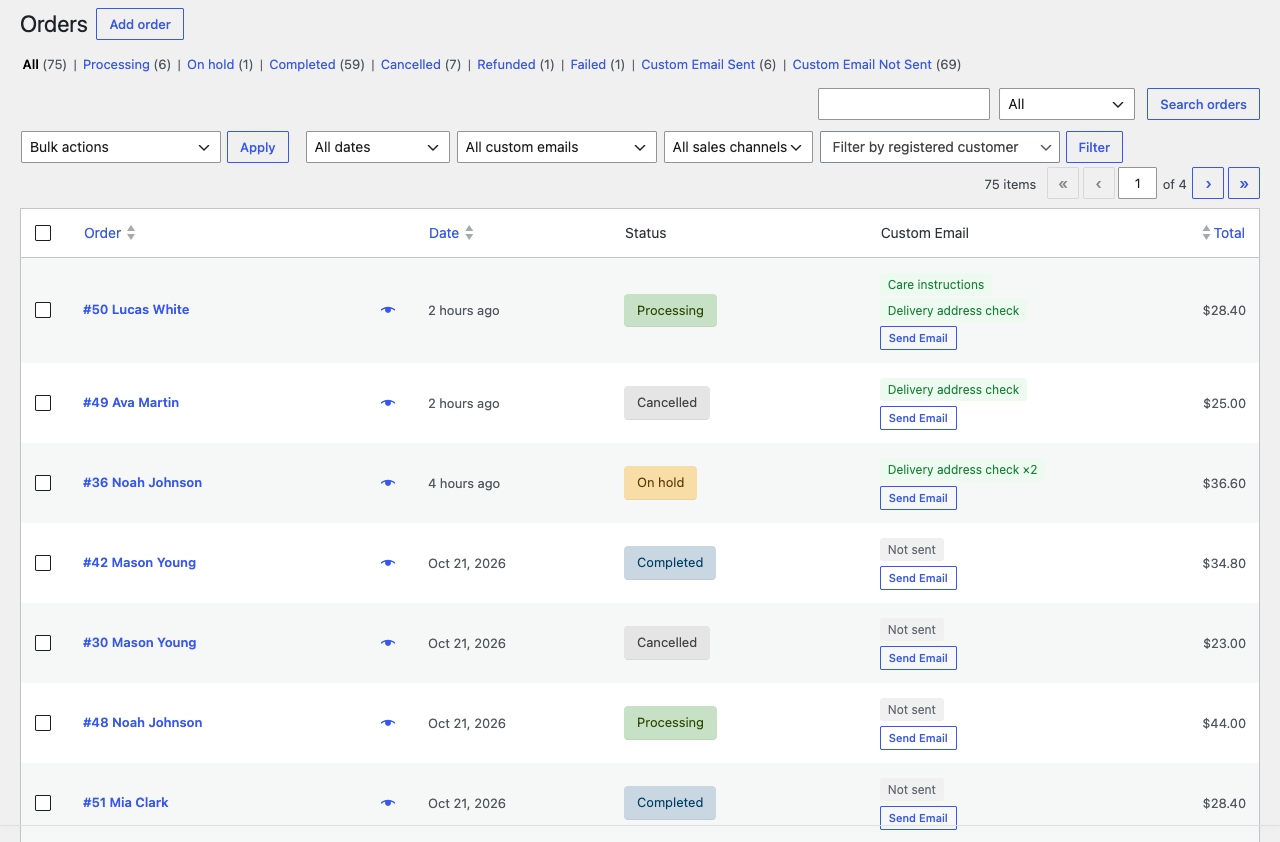
The Custom Email column of WooCommerce > Orders and the Custom Email box on the order screen show the name of each template sent for the order, the latest first. Available since 1.1.0.
- A template sent more than once shows how many times, for example "Delivery address check ×2".
- Hover over a name to see when it was last sent, for example "Delivery address check (Sent on September 30, 2026 10:15 am)". A long name is cut short in the column, and the hint shows all of it.
- An order with no email from this plugin shows Not sent.
- Only successful sends count. A failed send changes nothing, and test emails never touch an order.
- What was sent stays on the order. There is no button to remove it.
A template you rename shows its new name. A template you delete shows the name it had when it was sent.
Show only sent or unsent orders
Above the Orders list, next to the status links such as All and Processing, the plugin adds two links with a count for each:
- Custom Email Sent lists the orders that have had at least one email.
- Custom Email Not Sent lists the orders that have had none.
What was sent belongs to each order, not to the customer: a customer emailed about one order still shows Not sent on their other orders. Each count is the number of orders its link shows; like All, they leave out the drafts of checkouts that were never completed. The counts are worked out when the Orders list loads, so after a send from the Send Custom Email window they change at the next reload.

Filter by template
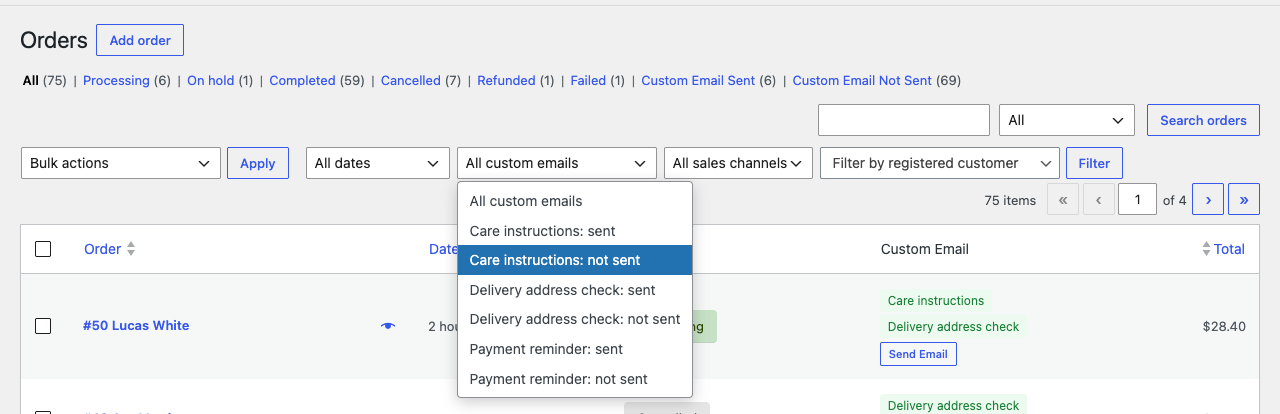
Above the Orders list, next to WooCommerce's own filters, the All custom emails menu has two choices for each published template, for example:
- Care instructions: sent lists the orders that template was sent for.
- Care instructions: not sent lists the orders it was not sent for, including orders that got other templates.
Choose one and click Filter. To narrow down to one order status, click the status first, such as Completed, then choose from the menu and click Filter: the list then shows, for example, the completed orders that have not had the care instructions yet. Select them and send the template with the bulk action; see Sending a template to many orders at once. Available since 1.1.0.
Note: After an update from 1.0.0, WooCommerce runs a short background task that lets the filter find the orders emailed before the update. Until it has finished, usually within a few minutes, those orders are listed under not sent. Their names in the Custom Email column are right from the start.
The history of each order
The History list in the order's Custom Email box shows every email sent for that order: the template name, the date and time, and the staff member who sent it. Each send also adds a private order note. See Sending an email from an order.