


Sending an email from the Orders list
The quickest way to email one customer is straight from the list of orders. This article shows how.
The Custom Email column
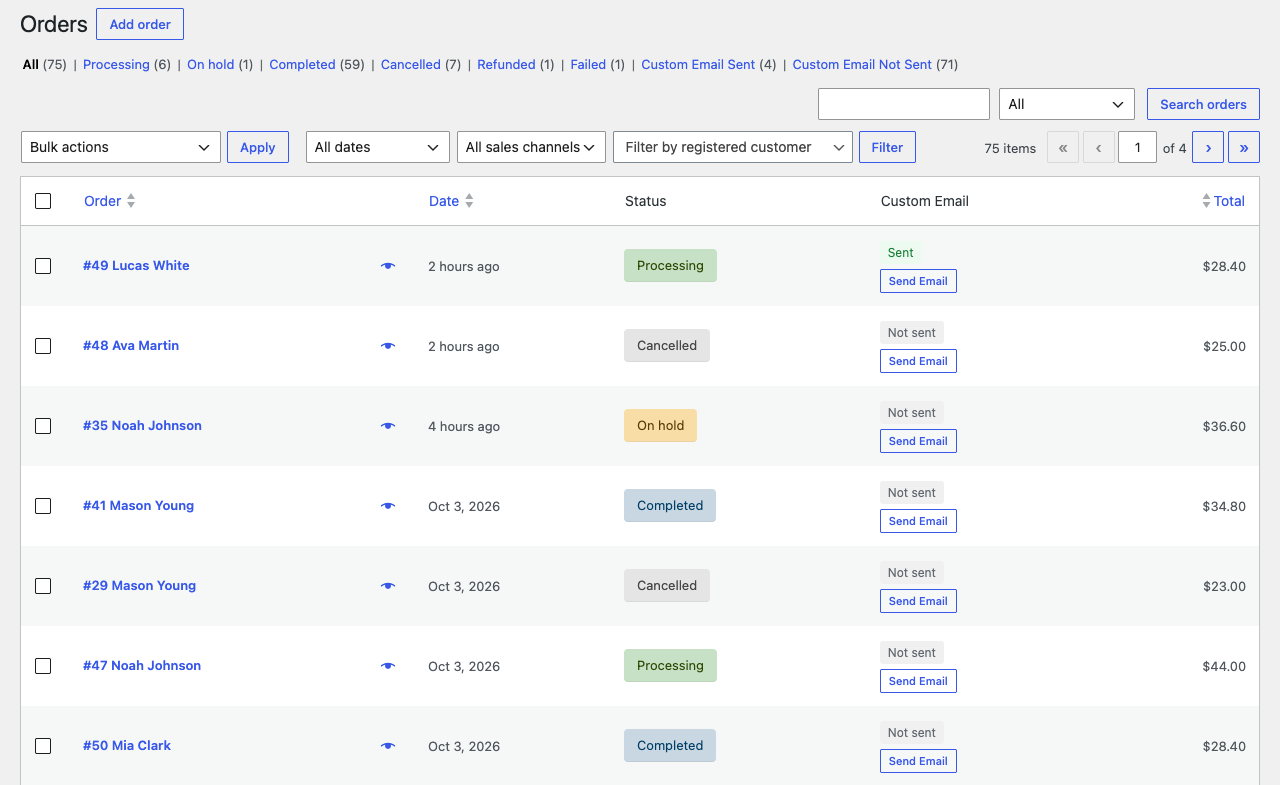
Under WooCommerce → Orders, the plugin adds a Custom Email column right after Status. For each order it shows:
- Sent once at least one email from this plugin has gone to that order’s customer, or Not sent before that.
- A Send Email button.
If you don’t see the column, open Screen Options at the top right of the screen and tick Custom Email. Only users who can send these emails see it; see Who can create and send emails.
Send an email
- Click Send Email on the order’s row.
- The Send Custom Email window shows where the email goes, for example “To: jane.doe@example.com (order #1234)”. Choose a template. The list shows your published templates in alphabetical order.
- Click Send Email.
The button shows “Sending…”, then the window shows “Email sent.” and closes, and the order’s column changes to Sent without reloading the page. The email went to the billing email address on the order.
To close the window without sending, click Cancel, the × button or outside the window, or press Esc.
If the order has no valid billing email address, the window says so, for example “Order #1234 has no valid billing email address. Add one to the order before sending.”, and nothing can be sent from it. Edit the order’s billing email first.
If the window says “No published email templates yet. Create one first.”, publish a template under Order Emails first. See Creating an email template. The window lists the templates that were published when the Orders page loaded, so reload the page after publishing a new one.
If sending fails
The window shows the reason, such as “This order has no valid billing email address.”, and nothing is sent. The messages you may see, and what to do about each one, are listed in When an email is not sent or not received.
To send the same template to many orders in one go, see Sending a template to many orders at once.