

Sending a template to many orders at once
When the same message goes to many customers, such as a delay notice for every order waiting on one product, you can send it to all of their orders in one step. This article explains the bulk action and its limits.
Send to several orders
- Go to WooCommerce → Orders.
- Tick the orders you want to email.
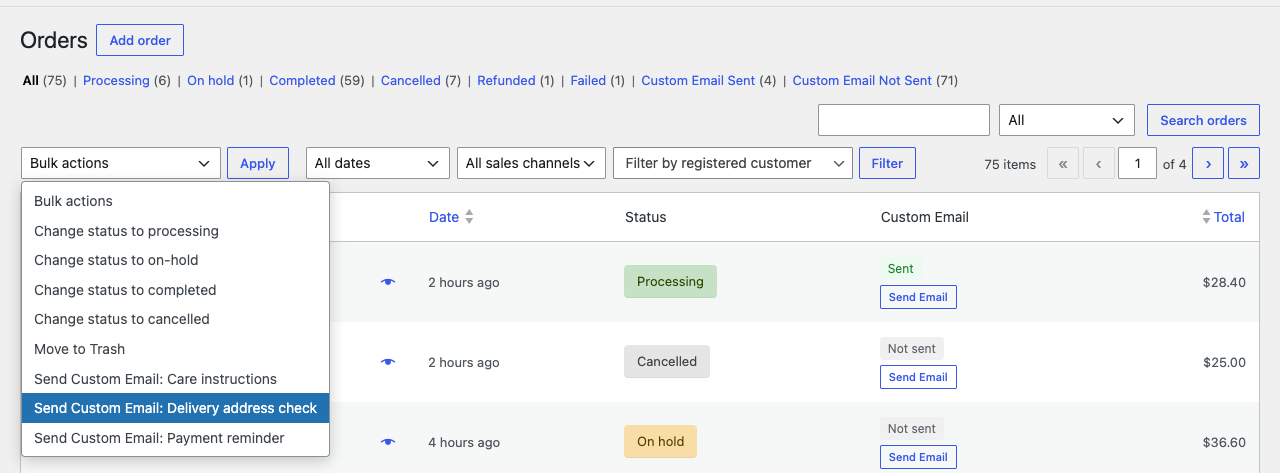
- Open the Bulk actions menu and choose Send Custom Email: followed by the template’s name. There is one entry for each published template.
- Click Apply.
- Your browser asks, for example, “Send “Delivery address check” to 12 selected orders?”. Click OK to send them, or Cancel to send nothing.
When the page reloads, a notice says how it went, for example “Custom email sent to 12 orders.”
What each customer gets
Every order gets its own email, filled in with that order’s details, sent to that order’s billing email address. Each successful send is recorded on its order as if you had sent it by hand: the column changes to Sent, and the order gets a history line and a private note.
Up to 50 orders per run
One run sends to at most 50 orders, so that a slow server doesn’t time out halfway through. If you selected more, 50 of them are sent and the notice adds: “Only 50 of the selected orders were processed in this run to avoid a timeout. The Custom Email column shows which ones were sent; select the rest and run the action again.” Which 50 depends on how WooCommerce stores your orders, so go by the Custom Email column rather than by their place in the list.
To see more orders on one page before you select them, raise the number of items per page under Screen Options at the top right of the screen. A developer can change the number of orders per run; see Hooks for sending emails.
Orders that already got an email
The bulk action does not skip an order that already received this template or any other. To email only orders that have had nothing yet, first click Custom Email Not Sent above the list, then select from what it shows. See Seeing which orders got an email.
When some orders fail
If some emails could not be sent, the notice says how many and why, for example “Custom email sent to 10 orders. 2 orders were not emailed because they have no valid billing email address.” Nothing was recorded on the orders that were not emailed. Fix what the notice names, such as their billing email addresses, and send to those orders again.
When the orders failed for different reasons, the notice says “Send one of them from its order screen to see why.” The Send Custom Email window on an order screen shows the reason for that order.
When the template itself cannot be sent, for example because its attached file was deleted, no email goes out at all and the notice starts with “No email was sent.” followed by the reason.
The notice doesn’t list which orders failed. Orders that had never been emailed before still show Not sent, so the Custom Email Not Sent filter finds them. Other reasons for a failure are listed in When an email is not sent or not received.