




The Site Monitor screen
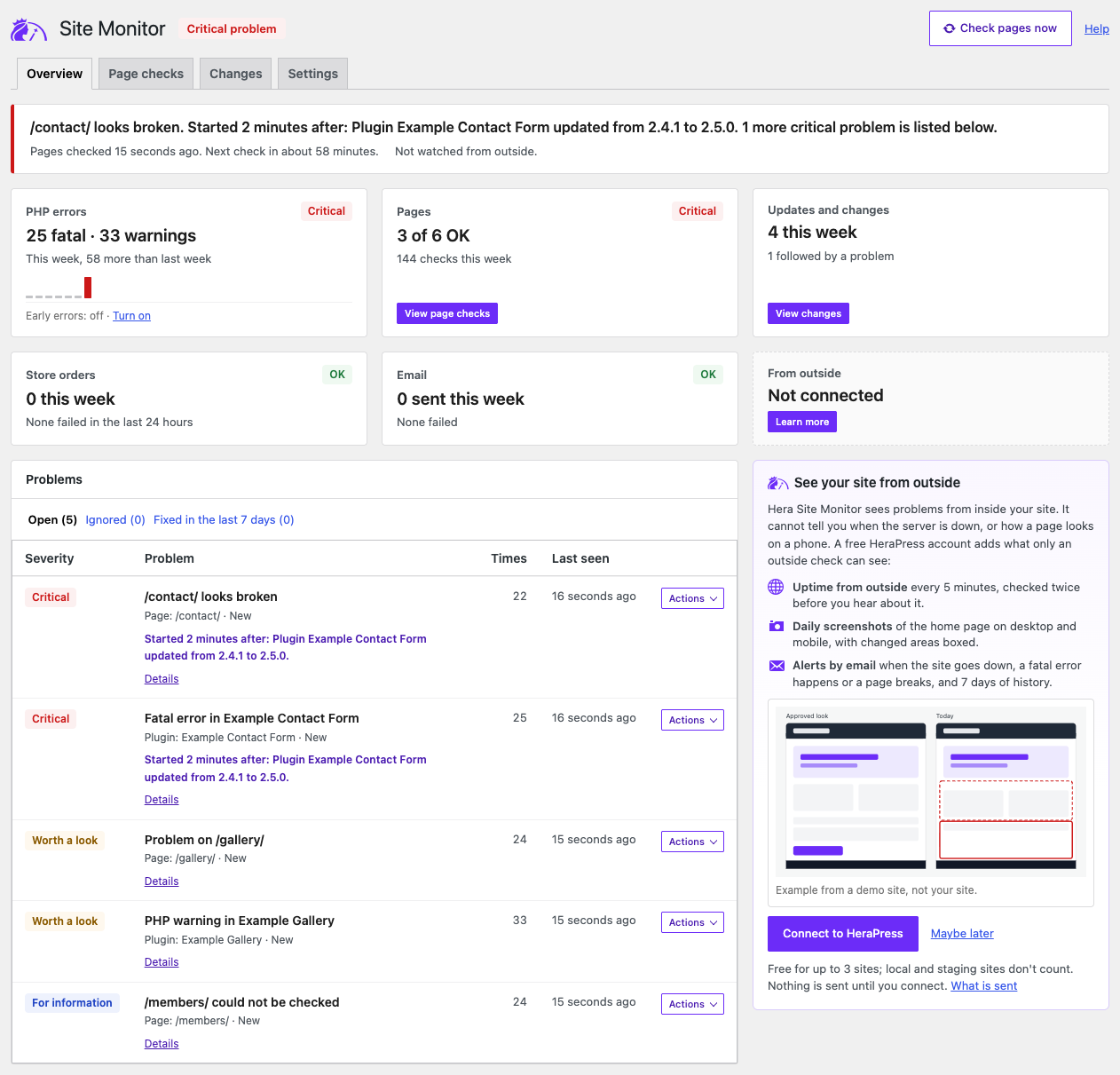
The Site Monitor screen tells you in one line whether something on your site needs attention, then shows what Hera Site Monitor watches, the screenshots HeraPress took once the site is connected, and the problems it found. Tabs at the top lead to its other screens: Page checks, Changes and Settings. They are also in the admin menu, under Site Monitor.
Who can open it
Administrators can open Site Monitor from the admin menu. Other users, such as editors or shop managers, do not see the menu item. While a critical problem seen on the site in the last 7 days is open, the menu item shows how many, like the count of comments waiting for moderation. HeraPress finding the site down from outside does not add to that count.
The status at the top
Next to the title, one word sums up the site:
| Status | When it shows |
|---|---|
| Critical problem | A problem that breaks something for visitors is open, or HeraPress finds the site down from outside and the site’s own check of its home page failed too: the page was broken or did not answer. |
| Worth a look | A problem worth a look is open; no page on the list could be checked at the last check; HeraPress could not see the site; or HeraPress finds the site down but the site’s own check of its home page did not fail. |
| Maintenance mode or Coming soon mode, in grey | A maintenance or coming soon mode that Hera Site Monitor recognises is on, and no critical problem or problem worth a look is open. |
| All clear | None of the above. Problems shown only for information, such as a single page that could not be checked, do not change it. |
The same three words name the problems in the list below: Critical, Worth a look and For information.
Only problems seen in the last 7 days count, the same 7 days Site Health uses. Problems you chose to ignore count only once they got worse. What HeraPress saw counts only while it is current; see The HeraPress card below.
HeraPress checks the site from one place outside, and a firewall or security service can answer its check with an error while visitors see the site normally. That is why its “down” alone gives Worth a look, with a sentence that says so and suggests checking that visitors can open the site, and why it never adds to the count on the menu item. Let the HeraPress monitor through your firewall lists the addresses HeraPress checks from and how to allow them.
Below the status, one sentence says what is wrong. When a critical problem started within an hour after an update or another change, the sentence names that change, for example: “/contact/ looks broken. Started 2 minutes after: Plugin Example Contact Form updated from 2.4.1 to 2.5.0.” When nothing is open, it says how many pages passed their check and when, and how many could not be checked. Only pages found OK count as passed. When it says that HeraPress could not see the site, it ends with How to let HeraPress through, which opens Let the HeraPress monitor through your firewall in a new tab.
While a maintenance or coming soon mode is on, the sentence starts with it, for example “Maintenance mode is on, so visitors see a maintenance page instead of the site. It was turned on in Elementor.” Pages that show the maintenance page meanwhile are not checked, and that does not make the status Worth a look. The modes recognised are listed in Page checks.
The line under the sentence says when the pages were checked and when the next check is due, and whether HeraPress also watches the site from outside, or since when it has not answered. Before the first check it says the check runs by itself; the first one comes about 2 minutes after you activate the plugin. While a check is due within a few minutes, the screen shows its results by itself once it has run. After 10 minutes it stops waiting and says Reload this screen to see newer results.
Check pages now runs the page checks at once. While they run, the button is turned off and a line says how many pages are being checked; it usually takes less than a minute. Help opens this guide.
The tiles
Each tile is one thing Hera Site Monitor watches, with its state at the top right (Critical, Worth a look or OK). The Pages tile shows no state before the first check.
| Tile | What it shows |
|---|---|
| PHP errors | The fatal errors and warnings of the last 7 days, compared with the 7 days before, and a bar for each day. Its last line says whether errors raised while earlier plugins load are caught too: Early errors: on or off, with Turn on when they are not. See PHP errors. |
| Pages | How many of the checked pages are OK, and how many checks ran this week. Its state says Could not check when a page on the list could not be checked at the last check and nothing worse was found. View page checks opens the Page checks screen. Until you choose more pages to check, its last line says Only the home page and the cart are checked (only the home page without WooCommerce), with Choose pages, which opens the settings. |
| Updates and changes | How many updates and other changes happened this week, and how many were followed by a problem. View changes opens the Changes screen. |
| Store orders | With WooCommerce: the orders of the last 7 days and the failed orders of the last 24 hours. |
| How many emails WordPress sent this week, and how many failed. | |
| From outside | What only a check from outside the site can see. It says Not connected until you connect the site to HeraPress, with Learn more, which leads to the card See your site from outside below. Once connected, it says whether HeraPress found the site Up or Down, the share of time it was up over the last 7 days with its outages, and whether the latest screenshots match the approved look or have a change to review; See screenshots leads to the Screenshots card below the tiles. It says Maintenance while visitors see a maintenance or coming soon page, which does not count as downtime, and Could not see when a bot check or a firewall answered instead of the site; its button then says How to let HeraPress through, in place of Open in HeraPress, and opens Let the HeraPress monitor through your firewall in a new tab. When what it shows is no longer current, it says Not current in grey, with when HeraPress last saw the site, for example “Last seen up 3 hours ago”, and its button is Open in HeraPress again. |
The weekly figures start on the day Hera Site Monitor was installed.
Screenshots
Once the site is connected to HeraPress and its first results are in, the Screenshots card sits under the tiles. It shows the home page as visitors see it, taken from outside by HeraPress every day, one device at a time: Desktop in a laptop frame and Mobile in a phone frame.
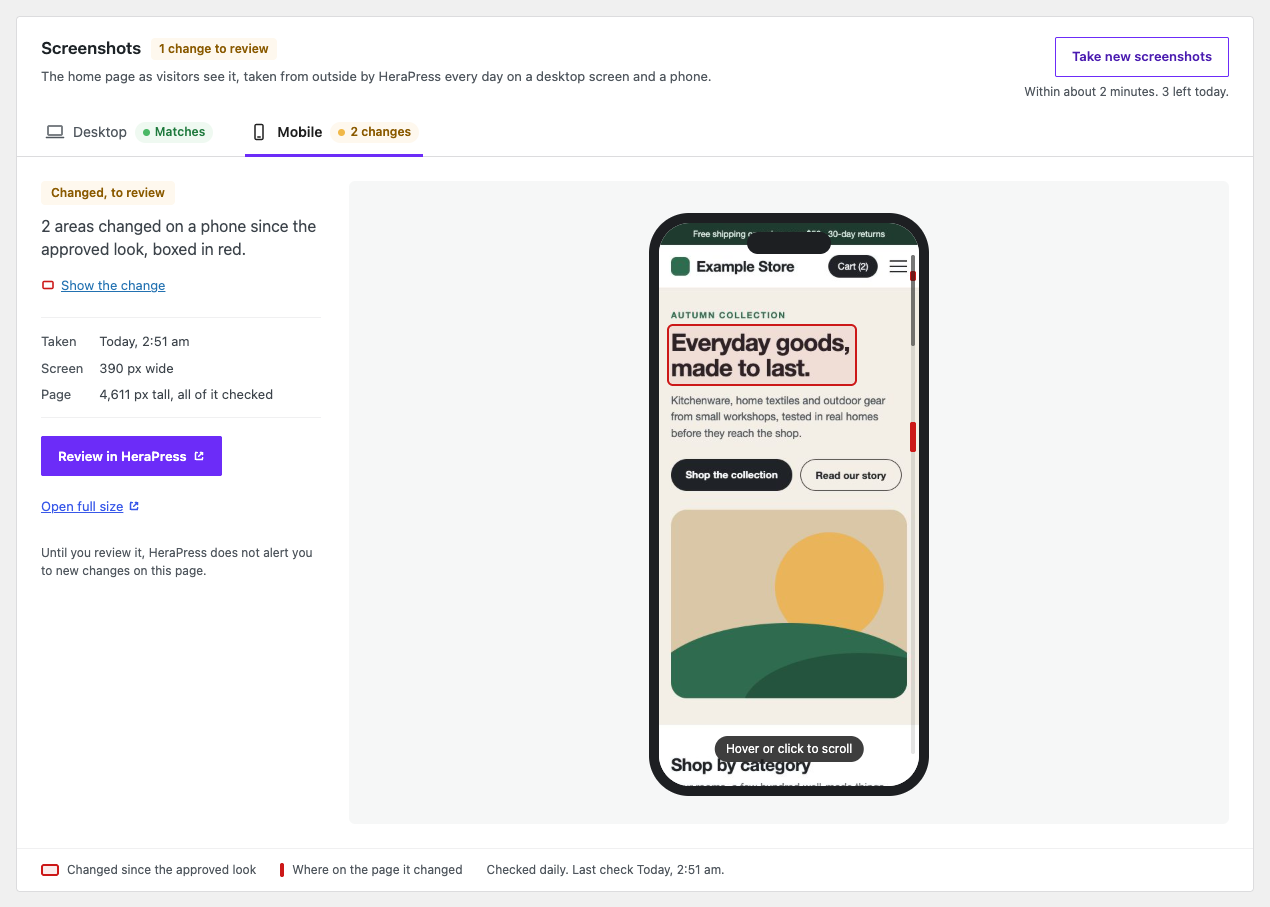
- The tabs Desktop and Mobile under the card’s title switch between the two screenshots. Each tab gives the state of its screenshot in words: Matches, 1 change or 2 changes, Approved for the first screenshot, which became the approved look, or, in a word or two, what HeraPress saw instead of the page: Maintenance, Coming soon, Bot check, Error page, Blank page, the status code the page answered with, such as HTTP 404, or Not seen. The result beside the screen says it in full. A tab shows nothing before its first screenshot. The card opens on the device whose screenshot changed; otherwise on the first one HeraPress could not compare; otherwise on Desktop. With the keyboard, the arrow keys, Home and End move between the tabs.
- Beside the screen, or under it on a narrow screen, are the result, one sentence about it, and three lines: Taken, when the screenshot was taken; Screen, how wide the screen was, such as 1,366 px for a desktop; and Page, how tall the whole page is, such as “3,290 px tall, all of it checked”. The result is Matches the approved look, Changed, to review, Approved look recorded or what HeraPress saw instead of the page.
- Hover over a screen to scroll slowly through the whole page; it goes back up when the mouse leaves. Click the screen, or press Enter or Space on it, to keep it scrolled down, and again to bring it back. On a phone or a tablet, tap it. If your device is set to reduce motion, nothing scrolls on hover, and a click shows the end of the page at once.
- HeraPress captures and compares at most the first 15,000 px of a page’s height, on every plan. For a taller page, Page says This page is taller than 15,000 px. HeraPress checks and shows its first 15,000 px. A change further down that page is not seen.
- A changed screenshot has each changed area boxed in red, and a red mark on the scroll bar at the side of the screen shows where on the page it is. Show the change scrolls the screen to the first box. When more than one area changed, it then says Show the next change and goes to the next box, down the page; after the last one it starts again from the first. Clicking the screen, or opening the other tab, brings the screen back. The card’s title says how many changes wait for your review, and under a changed screenshot the card says that until you review it, HeraPress does not alert you to new changes on that page.
- Each screenshot has one main button. For a changed screenshot it is Review in HeraPress, filled in purple; otherwise it is Open in HeraPress, outlined. Both open the screenshot in your HeraPress dashboard, in a new tab. The link Open full size opens the full-size picture in a new tab. On a high-resolution screen, such as a Retina display, the desktop screenshot loads at full size, so it stays sharp.
- When HeraPress found something other than the page itself, such as a maintenance page, the screen shows what it saw and says so: Maintenance page, Coming soon page, Blocked by a bot check, Error page or Blank page. HeraPress keeps one screen of it and never compares it with the approved look, so the approved look stays as it was. When a bot check or a firewall’s refusal (HTTP 403) answered, that device’s screen ends its sentence with How to let HeraPress through, and so does the card’s own sentence when HeraPress could compare neither screenshot. The link opens Let the HeraPress monitor through your firewall in a new tab.
- A screenshot HeraPress took without a copy of the whole page shows its first screen only, and does not scroll. When HeraPress sent no picture at all, the frame says No picture for this screenshot., and the tab and the details still give the result.
- Your browser loads the pictures through links that HeraPress makes for 90 minutes at a time. The screen asks HeraPress for new links before they run out, and when you open it after they have, it reloads by itself once the new ones are in.
Take new screenshots asks HeraPress for new screenshots of the home page on desktop and mobile. While they are taken, the screens are dimmed under a moving bar, and the screen reloads by itself once they are in, usually within 2 minutes. HeraPress allows a few a day, at least 10 minutes apart; the line under the button says how many are left today, and when it can be used again. When none are left, the button is turned off and the line says 0 left today. Before the first screenshots arrive, each frame says what will show there.
The card is not shown for a local site, which HeraPress does not check from outside. Screenshots of pages other than the home page are listed under Other pages.
Problems
The Problems box has three views:
- Open: the open problems, the most critical first.
- Ignored: the problems you chose to ignore until they get worse.
- Fixed in the last 7 days: the problems marked as fixed, by you or by the plugin when a page passed its check again.
Each problem is one row of a table:
- Severity: Critical (broken for visitors, look now), Worth a look (wrong, but the site still works) or For information (nothing to fix right away).
- Problem: a title that names what it happened in, such as Fatal error in Example Contact Form, /contact/ looks broken or /members/ could not be checked. Under it, where it came from, such as Plugin: Example Contact Form or Page: /contact/, and its state: New (first seen in the last 24 hours), Ongoing, Back again (it happened again after you marked it as fixed), Got worse while ignored or Not seen for 7 days. When it started within an hour after an update or another change, a line names the change. See Changes and updates.
- Details under the title opens the message, with the file and line it points at, why it matters for PHP errors, and What to do for every kind of problem: for example, clear the cache of a caching plugin when a stylesheet is missing, or add WooCommerce’s Cart block back when the cart page lost its cart. For the home page, when it sends visitors to another page of the site, it also says where the page was checked.
- Times: how many times it happened, and Last seen: when it last did.
When the same problem happens again, its row is updated and its count goes up, instead of a new row being added. The table shows ten problems at a time; the links under it lead to the next ones. When there is nothing to report, the screen says Nothing to report.
What you can do with a problem
Actions at the end of a row opens a short menu:
- Open Plugins, Open Themes or Open the page takes you to what the problem came from.
- Mark as fixed moves the problem to Fixed in the last 7 days. If it happens again, it comes back as Back again, with its count carried on.
- Ignore until it gets worse moves the problem to Ignored. It comes back to Open once it has happened as many times again as before you ignored it, and at least 10 more times. While it is ignored it does not count towards the status at the top or Site Health.
- Stop ignoring, in the Ignored view, puts it back at once.
Page checks
View page checks on the Pages tile opens the Page checks screen: every page on the list with its result, its status code, its last 24 checks, its load times and everything found. See Page checks.
What changed, and what followed
View changes on the Updates and changes tile opens the Changes screen: every update, activation, theme switch and PHP version change on record, with the problems that started within the hour after each. See Changes and updates.
The HeraPress card
Next to the problems, the card See your site from outside explains what a free HeraPress account adds: uptime checks from outside, daily screenshots of the home page on desktop and mobile, and alerts by email. Its picture is an example from a demo site, not your site. Maybe later folds the card to one line for you; other administrators still see it. See Connect to HeraPress.
Once the site is connected, the card shows what HeraPress saw: since when the site is up or down, or that HeraPress could not see it, how often it is checked, a mark for each of the last 7 days, the last outage, and how many alerts were sent this week by email and Telegram. When HeraPress could not see the site, that line ends with How to let HeraPress through. When alert messages could not be delivered in the last 7 days, a line says how many, by email and by Telegram. The screenshots have a card of their own, described above. Open your HeraPress dashboard goes to the site’s page there, See history to the site’s history on that page, and See report to a printable report of the days the site’s plan keeps, each in a new tab. On the free plan, a plain line above them says how many days of history the plan keeps, for example The free plan keeps 7 days of history. Paid HeraPress plans keep more. When HeraPress gives the address of its plans, the line ends with See plans, which opens it in a new tab. The screen reads these results from HeraPress every 15 minutes, and when you open it after more than 5 minutes.
The card says Not current at the top when what it shows may no longer be true:
- the site has had no answer from HeraPress for more than 30 minutes, for example “HeraPress has not answered since Today, 4:58 pm. What you see below is from then.” Problems found on the site meanwhile are kept and sent once HeraPress answers;
- the site has not been in touch with HeraPress for more than 30 minutes, which happens when WordPress’s scheduled tasks do not run;
- HeraPress answers, but its own last check from outside is much older than its answer: “HeraPress has not checked the site from outside since …”.
While it is not current, what HeraPress saw does not change the status at the top. An open Site Monitor screen notices when HeraPress’s view changes or is current again, and reloads by itself.
When HeraPress no longer serves the installed version of Hera Site Monitor, the top of the card shows HeraPress’s message, This version of Hera Site Monitor is no longer supported. Update the plugin to keep monitoring this site., and for an administrator who can update plugins, Go to Plugins. The buttons of the card show the same message. Until the plugin is updated, HeraPress takes nothing from the site; the problems found meanwhile wait on the site, and those of the last 7 days are sent after the update. Before that, when HeraPress announces that it will stop serving the version, the card says so, with the date when HeraPress gives one, for example HeraPress will stop serving this version of Hera Site Monitor on March 1, 2028. Update the plugin to keep monitoring this site.
Connect Telegram, under Alerts this week, links a Telegram chat to the site’s alerts: it shows a QR code to scan with your phone, a link that opens Telegram, Add to a group and a code to send the bot by hand. When the code runs out, Get a new code gives another. Once the chat is linked, the screen updates by itself and the card says Telegram is linked, with how to stop the alerts in that chat. When the site’s plan allows one chat, as the free plan does, the card also says that to use another chat you unlink this one first. See Getting alerts on Telegram.
Send a test alert, under Alerts this week, asks HeraPress to send one test message to every email address and Telegram chat the site’s alerts go to, even while alerts are muted. It usually arrives within a few minutes. HeraPress allows a few a day; the line under the button says how many are left today. When there is nowhere to send it, the screen shows HeraPress’s message, which says what to turn on. The button is not shown for a local site.
When the mail server of your HeraPress account’s email address refused earlier alerts, the card says Email not delivered: change the address in your HeraPress dashboard, or connect Telegram.
How long problems count
A problem counts towards the status at the top and the count on the menu item for 7 days after it was last seen, as in Site Health. After that it stays under Open with the state Not seen for 7 days and a line suggesting Mark as fixed if it is solved. If it happens again, it counts again.
How long problems are kept
A problem is removed automatically 30 days after it was last seen. A daily task does the clean-up.
Email addresses and IP addresses in a problem’s text are replaced with [email] and [ip] before it is stored, so the list does not keep your visitors’ personal data.