


Exporting and printing reports
Every report can be downloaded as a spreadsheet file, and the dashboard and the Orders report can be printed or saved as a PDF. This article explains what each file contains.
CSV files
| Button | On | Downloads |
|---|---|---|
| Export CSV | The dashboard and the Affiliates report | One row per affiliate. |
| Export CSV | The Coupons report | One row per coupon. |
| Export CSV | The Orders report | One row per coupon used on an order, like the list on screen. |
A file follows the filters on screen: the period, the affiliate, the coupon, the status link and the sort order. It holds every matching row, not only the page on screen, up to 5,000 rows.
Besides the columns on screen, the affiliate and coupon files split the orders into their five outcomes, and give commission earned and pending, even while commission tracking is off.
The Orders file has one row per coupon used on an order, with the order number WooCommerce shows, the outcome, the payment method, the order total, the refunded amount, the discount, the currency, and one commission amount: what the row earns for confirmed and pending orders, and 0 for the rest.
The files open in Excel, Numbers or Google Sheets. They are UTF-8 with commas between values, and amounts are plain numbers with a dot for decimals.
PDF and print
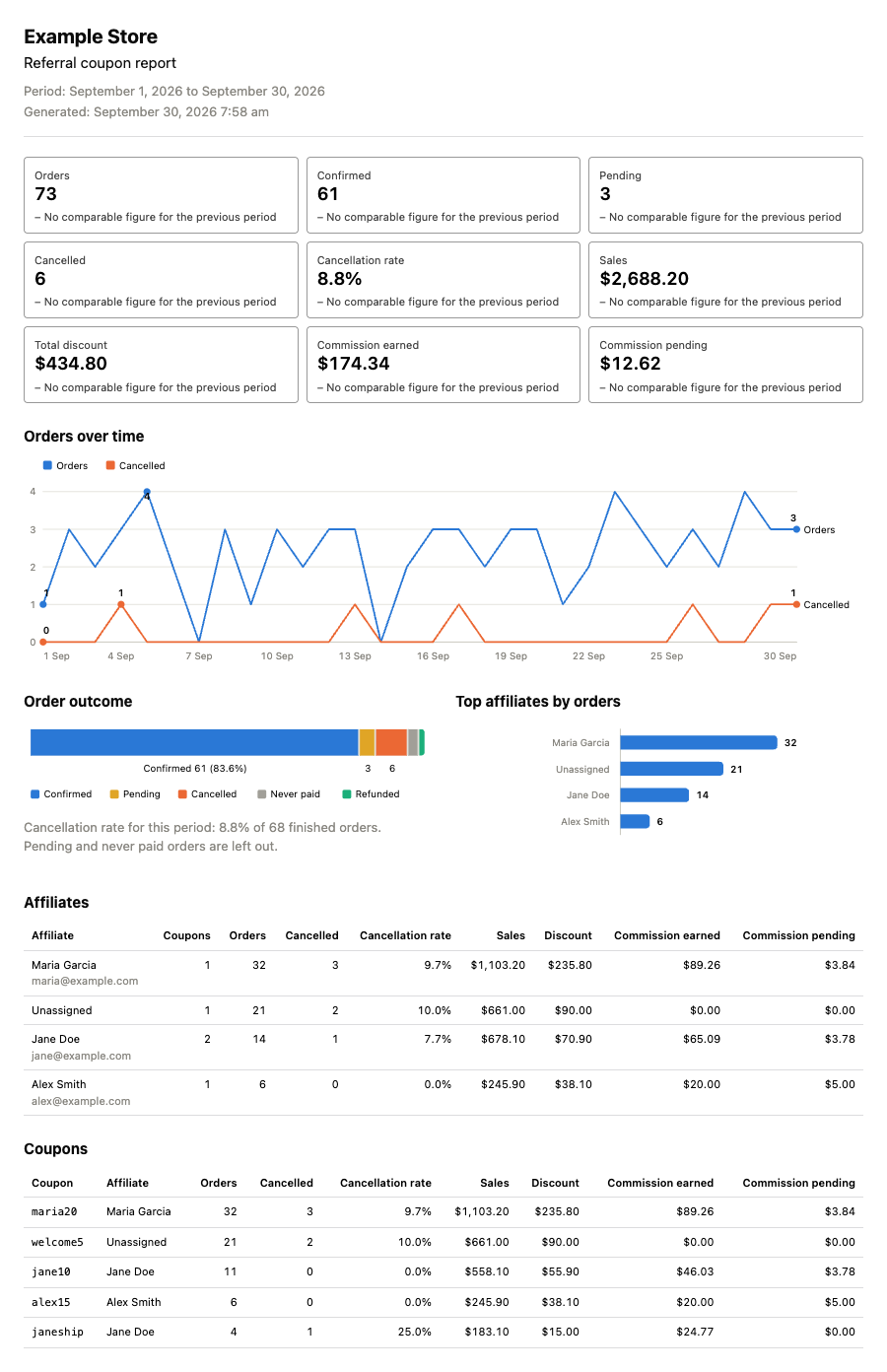
Export PDF, on the dashboard and the Orders report, opens a print layout of the report in a new tab, and your browser’s print dialog with it. Choose “Save as PDF” as the destination to keep a PDF, or pick a printer. On Windows, “Microsoft Print to PDF” also works.
The print layout holds:
- your site name, the period and any filters in use, and when it was generated;
- the figures, with their comparison to the previous period;
- the Orders over time, Order outcome and Top affiliates by orders charts;
- an Affiliates table and a Coupons table.
It does not list individual orders, even when printed from the Orders report. For a full list of orders, use Export CSV on the Orders report.
The plugin makes the PDF with your browser’s own print function. It bundles no PDF library and sends nothing to an outside service.
Statements and payments on the Payouts screens have their own print buttons. See Reading an affiliate’s statement.